
Why use message queues?
Message queues decouple producers and consumers and let you:
-
handle spikes (buffering),
-
retry and persist messages,
-
run asynchronous work,
-
scale consumers independently,
-
implement pub/sub, work queues, routing patterns.
Ok, it's code time.
MSMQ — the original Windows message queuing
Hint: System.Messaging (MSMQ) is a Windows .NET Framework technology. It's available on Windows and via the .NET Framework System.Messaging assembly. It is not part of .NET modern runtimes. If you need to support legacy Windows desktop apps (WPF) that target .NET Framework, MSMQ is an option. For modern cross-platform .NET 10 apps, prefer RabbitMQ, Kafka or Azure Service Bus.
Minimal WPF sender (uses System.Messaging)
Create a .NET Framework WPF project (like f.e. with .NET Framework 4.8). Add reference to System.Messaging.
using System.Messaging;
using System.Windows;

namespace MsmqWpfDemo
{
    public partial class SendMessageWindow : Window
    {
        const string QueuePath = @".\Private$\myqueue";

        public SendMessageWindow() { InitializeComponent(); }

        private void SendButton_Click(object sender, RoutedEventArgs e)
        {
            if (!MessageQueue.Exists(QueuePath))
                MessageQueue.Create(QueuePath);

            using var q = new MessageQueue(QueuePath);
            q.Label = "WPF demo queue";
            q.Send("Hello from WPF + MSMQ!");
            MessageBox.Show("Sent.");
        }
    }
}
Minimal WPF receiver (polling or asynchronous)
using System;
using System.Messaging;
using System.Windows;

namespace MsmqWpfDemo
{
    public partial class ReceiverWindow : Window
    {
        const string QueuePath = @".\Private$\myqueue";
        private MessageQueue _q;

        public ReceiverWindow()
        {
            InitializeComponent();
            if (!MessageQueue.Exists(QueuePath))
                MessageQueue.Create(QueuePath);
            _q = new MessageQueue(QueuePath)
            {
                Formatter = new XmlMessageFormatter(new[] { typeof(string) })
            };
            _q.ReceiveCompleted += Q_ReceiveCompleted;
            _q.BeginReceive(); // starts async receive
        }

        private void Q_ReceiveCompleted(object sender, ReceiveCompletedEventArgs e)
        {
            try
            {
                var msg = _q.EndReceive(e.AsyncResult);
                var body = (string)msg.Body;
                Dispatcher.Invoke(() => ReceivedTextBox.Text += $"{DateTime.Now}: {body}\n");
            }
            catch (MessageQueueException mqe) { /* handle */ }
            finally
            {
                _q.BeginReceive(); // continue listening
            }
        }
    }
}
RabbitMQ
-
.NET client:
RabbitMQ.Clientpackage. -
Good for work queues, pub/sub, routing (exchanges), easy to run locally with Docker or a hosted RabbitMQ.
- Message Queues (Point-to-Point): A message queue delivers messages to one consumer. Once consumed, the message is removed from the queue.
Producer (send)
Install NuGet: RabbitMQ.Client
using System.Text;
using RabbitMQ.Client;

var factory = new ConnectionFactory() { HostName = "localhost" }; // set credentials if needed
using var connection = factory.CreateConnection();
using var channel = connection.CreateModel();

var queueName = "hello";
channel.QueueDeclare(queue: queueName, durable: false, exclusive: false, autoDelete: false, arguments: null);

string message = "Hello from RabbitMQ!";
var body = Encoding.UTF8.GetBytes(message);

channel.BasicPublish(exchange: "", routingKey: queueName, basicProperties: null, body: body);
Console.WriteLine(" [x] Sent {0}", message);
Consumer (receive)
using System;
using System.Text;
using RabbitMQ.Client;
using RabbitMQ.Client.Events;

var factory = new ConnectionFactory() { HostName = "localhost" };
using var connection = factory.CreateConnection();
using var channel = connection.CreateModel();

var queueName = "hello";
channel.QueueDeclare(queue: queueName, durable: false, exclusive: false, autoDelete: false, arguments: null);

var consumer = new EventingBasicConsumer(channel);
consumer.Received += (model, ea) =>
{
    var body = ea.Body.ToArray();
    var message = Encoding.UTF8.GetString(body);
    Console.WriteLine(" [x] Received {0}", message);
};

channel.BasicConsume(queue: queueName, autoAck: true, consumer: consumer);

Console.WriteLine(" Press [enter] to exit.");
Console.ReadLine();
Apache Kafka
-
For .NET, the usual choice is
Confluent.Kafka. Kafka models are different: topics/partitions, offsets, consumer groups (scaling by group members). -
Use when you need extremely high throughput, event streaming, long retention, or stream processing.
- In event streaming, messages (events) are published to topics, and multiple consumers can subscribe to the same topic. The message remains available for a defined retention period.
Producer (send)
Add NuGet: Confluent.Kafka
using System;
using Confluent.Kafka;

var config = new ProducerConfig { BootstrapServers = "localhost:9092" };

using var producer = new ProducerBuilder<Null, string>(config).Build();
for (int i = 0; i < 5; i++)
{
    var msg = $"Message {i}";
    var result = await producer.ProduceAsync("my-topic", new Message<Null, string> { Value = msg });
    Console.WriteLine($"Produced to {result.TopicPartitionOffset}");
}
producer.Flush(TimeSpan.FromSeconds(10));
Consumer (receive)
using System;
using Confluent.Kafka;

var conf = new ConsumerConfig
{
    GroupId = "test-consumer-group",
    BootstrapServers = "localhost:9092",
    AutoOffsetReset = AutoOffsetReset.Earliest
};

using var consumer = new ConsumerBuilder<Ignore, string>(conf).Build();
consumer.Subscribe("my-topic");

while (true)
{
    try
    {
        var cr = consumer.Consume();
        Console.WriteLine($"Consumed: {cr.Message.Value} at {cr.TopicPartitionOffset}");
    }
    catch (ConsumeException e)
    {
        Console.WriteLine($"Consume error: {e.Error.Reason}");
    }
}
Azure Service Bus
-
Use
Azure.Messaging.ServiceBusfor .NET -
Good when you want a managed Microsoft service with queues, topics/subscriptions, dead-lettering, scheduled messages.
- Supports both point to point and streaming.
Producer (send)
Add NuGet: Azure.Messaging.ServiceBus
using System;
using Azure.Messaging.ServiceBus;

string connectionString = "<SERVICE_BUS_NAMESPACE_CONNECTION_STRING>";
string queueName = "my-queue";

await using var client = new ServiceBusClient(connectionString);
ServiceBusSender sender = client.CreateSender(queueName);

var message = new ServiceBusMessage("Hello Azure Service Bus!");
await sender.SendMessageAsync(message);
Console.WriteLine("Message sent.");
Consumer (receive)
using System;
using Azure.Messaging.ServiceBus;

string connectionString = "<SERVICE_BUS_NAMESPACE_CONNECTION_STRING>";
string queueName = "my-queue";

await using var client = new ServiceBusClient(connectionString);
var processor = client.CreateProcessor(queueName, new ServiceBusProcessorOptions());

processor.ProcessMessageAsync += async args =>
{
    string body = args.Message.Body.ToString();
    Console.WriteLine($"Received: {body}");
    await args.CompleteMessageAsync(args.Message); // mark message complete
};

processor.ProcessErrorAsync += args =>
{
    Console.WriteLine(args.Exception.ToString());
    return Task.CompletedTask;
};

await processor.StartProcessingAsync();
Console.WriteLine("Press any key to stop");
Console.ReadKey();
await processor.StopProcessingAsync();
For local development you can try the Azure Service Bus Emulator.
Background-job libraries like Hangfire & Quartz.NET
These are scheduling and background-execution frameworks rather than message brokers. They can use persistent storage (SQL, Redis) and are great for background jobs, delayed/recurring tasks, and built-in retries.
Hangfire
-
Add
Hangfire.CoreandHangfire.AspNetCore. -
Requires a storage backend (SQL Server, Redis, etc.)
-
Hangfire will manage job queueing and workers.
Quick example
using Hangfire;
using Hangfire.MemoryStorage; // for simple demo only

var builder = WebApplication.CreateBuilder(args);
builder.Services.AddHangfire(config => config.UseMemoryStorage());
builder.Services.AddHangfireServer();
var app = builder.Build();

RecurringJob.AddOrUpdate("say-hello", () => Console.WriteLine("Hello from Hangfire!"), Cron.Minutely);

app.MapGet("/", () => "Hangfire running");
app.Run();
Fire-and-forget:
BackgroundJob.Enqueue(() => Console.WriteLine("Run now!"));
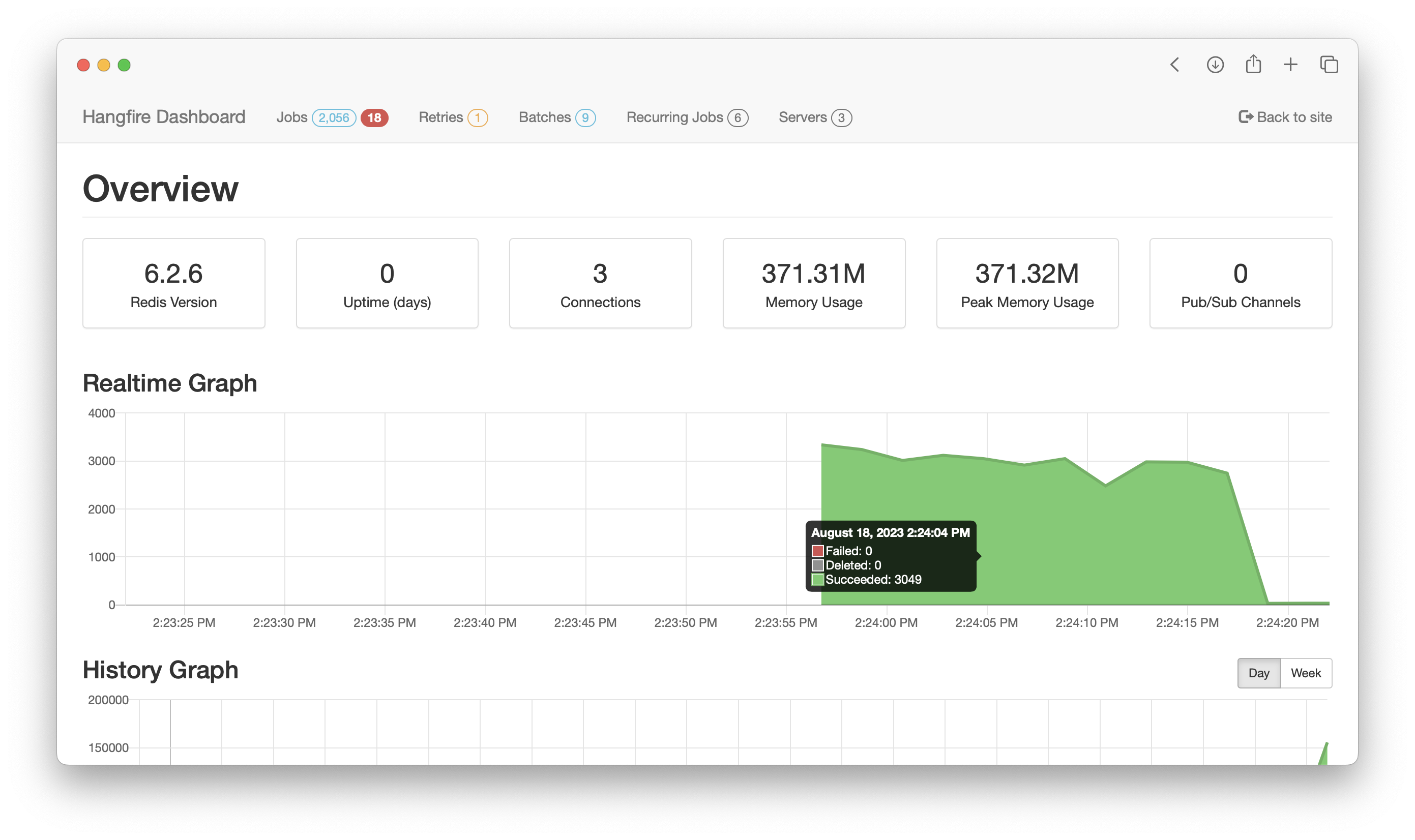
In real world scenarios, replace memory storage with some persistant storage. Hangfire provides a dashboard and handles retries, queues, continuations:
Quartz.NET
-
Library for cron-like scheduling, complex triggers, clustering (with persistent job store).
-
Good when you need cron expressions, calendars, or very precise scheduling.
Minimal example
// Job class
using Quartz;

public class HelloJob : IJob
{
    public Task Execute(IJobExecutionContext context)
    {
        Console.WriteLine($"Hello from Quartz at {DateTime.Now}");
        return Task.CompletedTask;
    }
}

// Program.cs
using Quartz;
using Quartz.Impl;

StdSchedulerFactory factory = new StdSchedulerFactory();
var scheduler = await factory.GetScheduler();
await scheduler.Start();

var job = JobBuilder.Create<HelloJob>().WithIdentity("job1", "group1").Build();
var trigger = TriggerBuilder.Create()
    .WithIdentity("trigger1", "group1")
    .StartNow()
    .WithSimpleSchedule(x => x.WithIntervalInSeconds(30).RepeatForever())
    .Build();

await scheduler.ScheduleJob(job, trigger);

// keep running
Console.WriteLine("Scheduler started. Press any key...");
Console.ReadKey();
await scheduler.Shutdown();
Practical tips
-
Transactions & reliability: Brokers differ. Azure Service Bus supports transactions and dead-lettering; Kafka provides different guarantees (at-least-once by default, exactly-once with setups); RabbitMQ can do confirmations and transactions but semantics differ. Design for idempotency.
-
Local development: RabbitMQ & Kafka are easy to run in Docker.
-
Cross-platform: For .NET 10 and cross-platform, avoid
System.Messaging(MSMQ) because it is Windows/.NET Framework only. Use the cloud or open-source brokers above. -
Monitoring: Use broker UIs (RabbitMQ Management), Kafka tools (Confluent Control Center or open-source), Azure Portal metrics or Hangfire dashboard.
-
Security: Use TLS, proper authentication (SAS, OAuth2, client certs), and least privilege.