
Goal
Extend the functionality of Open WebUI with external tools. We will use a local MCP server developed in C# for our local Open WebUI installation.
We will create a (very basic) C# MCP Server that uses STDIO (standard input/output) as the transport protocol. This MCP Server will execute CLI commands.
So this means that all of a sudden your Open WebUI ChatBot can take control of your system.
Installing the VS Project Template
This step is not really needed. You could simply create a console application and add the needed NuGet packages
$> dotnet add package ModelContextProtocol --prerelease
$> dotnet add package Microsoft.Extensions.Hosting
But when you develop several MCP Servers in Visual Studio 2026 it is handy to have a project template for this kind of project. So start a CMD.EXE and install the project template for MCP Servers
$> dotnet new install Microsoft.McpServer.ProjectTemplates
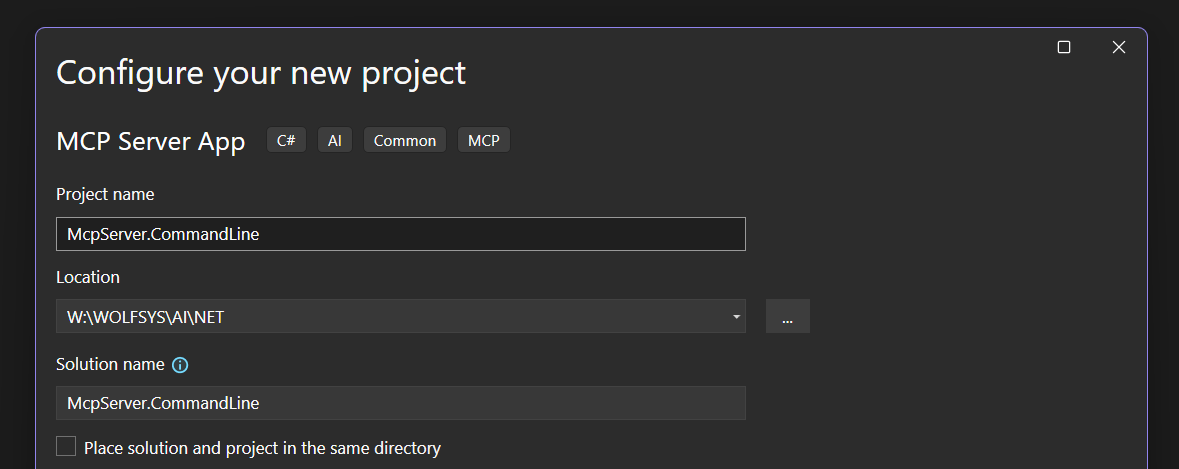
This way you can simply create a new MCP Server Project via New Project in Visual Studio 2026:
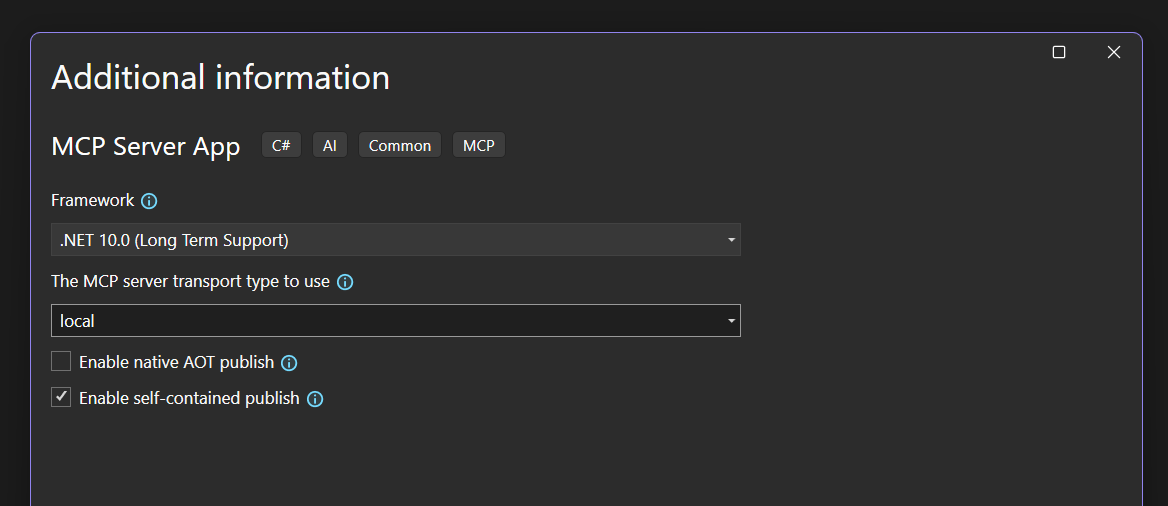
Important:
Be sure to set the transport type to local.
When trying to implement a remote MCP server (with Http/SSE transport), Open WebUI fails to execute the tool call. I am not sure why the call to initialize and list/tools suceed but the tool call itself fails with error 204 - no content.
Since we're using the local transport type, our MCP server will communicate in plain STDIO. Open WebUI does not "speak" STDIO therefore we will need to install the MCPO tool to act as a brige between our MCP Server and Open WebUI.
C# MCP Server Implementation
Program.cs
using Microsoft.Extensions.DependencyInjection;
using Microsoft.Extensions.Hosting;
using Microsoft.Extensions.Logging;

var builder = Host.CreateApplicationBuilder(args);

// Configure all logs to go to stderr (stdout is used for the MCP protocol messages).
builder.Logging.AddConsole(o => o.LogToStandardErrorThreshold = LogLevel.Trace);

// Add the MCP services: the transport to use (stdio) and the tools to register.
builder.Services
    .AddMcpServer()
    .WithStdioServerTransport()
    .WithTools<CommandLineTools>();

await builder.Build().RunAsync();
Tools/CommandLineTools.cs
This is where the actual tool call happens. But to ensure that the LLM is not doing something very stupid/dangerous, we will deny a few commands from being executed. No need to have a hallucinating LLM that all of a sudden performs a FORMAT C:
The same applies to the execution of batch files - here dangerous commands could do something you do not want to happen. Alternatively, you could also parse the *.BAT file beforehand for malicious commands.
Of course all these checks here are very basic since this is just a "Hello MCP world" demo. In a real world scenario, those checks will have to be quite more advanced, see security considerations at the end of this blog post.
using System.ComponentModel;
using ModelContextProtocol.Server;

/// <summary>
/// Sample MCP tools for demonstration purposes.
/// These tools can be invoked by MCP clients to perform various operations.
/// </summary>
internal class CommandLineTools
{
    [McpServerTool]
    [Description("Use the Windows Command Line (CMD.EXE) to execute a single CLI command.")]
    public string ExecuteCommandLineArgument(
        [Description("CLI command (or name of batch file) to execute in CMD.EXE")] string commandToExecute)
    {
        string output = string.Empty;
        string errmsg = string.Empty;

        // Security check: Disallow potentially dangerous commands
        // This is very basic filtering; in a real-world scenario, consider more robust validation.
        if (commandToExecute.ToUpper().StartsWith("FORMAT") ||
            commandToExecute.ToUpper().StartsWith("DEL") ||
            commandToExecute.ToUpper().StartsWith("ERASE") ||
            commandToExecute.ToUpper().StartsWith("RD") ||
            commandToExecute.ToUpper().StartsWith("RMDIR") ||
            commandToExecute.ToUpper().StartsWith("SHUTDOWN") ||
            commandToExecute.ToUpper().StartsWith("POWERCFG") ||
            commandToExecute.ToUpper().StartsWith("DISKPART") ||
            commandToExecute.ToUpper().StartsWith("CMD"))
        {
            return "ERROR:\nThe specified command is not allowed for security reasons.";
        }
        else if (commandToExecute.ToUpper().Contains(".BAT"))
        {
          return "ERROR:\nBatch file execution is denied for security reasons.";
        }

        try
        {
            McpServer.CommandLine.WindowsCommandLine.ExecuteCommandLineArgument(
                 commandToExecute, out output, out errmsg);
        }
        catch (Exception ex)
        {
            errmsg = ex.Message;
        }

        if (!string.IsNullOrEmpty(errmsg))
            return $"ERROR:\n{errmsg}";
        else
            return $"SUCESS:\n{output}";
    }
}
WindowsCommandLine.cs
Simple Helper Class that handles the CMD.EXE process execution
public static class WindowsCommandLine
{
    public static void ExecuteCommandLineArgument(
              string command,
              out string output,
              out string error,
              string optionalWorkingDirectory = null)
    {
        using Process process = new Process
        {
            StartInfo = new ProcessStartInfo
            {
                FileName = "cmd.exe",
                UseShellExecute = false,
                RedirectStandardOutput = true,
                RedirectStandardError = true,
                RedirectStandardInput = true,
                Arguments = "/c " + command,
                CreateNoWindow = true,
                WorkingDirectory = optionalWorkingDirectory ?? string.Empty,
            }
        };

        process.Start();
        process.WaitForExit();
        output = process.StandardOutput.ReadToEnd();
        error = process.StandardError.ReadToEnd();
    }
}
Build the project in VS2026. We will simply go with the debug build for this "Hello MCP world" demo.
Windows Subsystem for Linux
Instead of calling Windows CMD.EXE commands you could also execute Linux bash commands if you have WSL2 installed just by replacing cmd.exe with wsl.exe in the static helper class:
public static class WinSubSysLinux
{
    public static void ExecuteBashCommand(string command,
                                          out string output,
                                          out string error,
                                          string optionalWorkingDirectory = null)
    {
        using Process process = new Process
        {
            StartInfo = new ProcessStartInfo
            {
                FileName = "wsl.exe",
                UseShellExecute = false,
                RedirectStandardOutput = true,
                RedirectStandardError = true,
                RedirectStandardInput = true,
                Arguments = command,
                CreateNoWindow = true,
                WorkingDirectory = optionalWorkingDirectory ?? string.Empty,
            }
        };

        process.Start();
        //process.WaitForExit();
        output = process.StandardOutput.ReadToEnd();
        error = process.StandardError.ReadToEnd();
    }
}
MCPO
for OpenWebUI, LibreChat and so on
MCPO stands for Model Context Protocol – OpenAPI and in practice it acts as a bridge between Open WebUI and a local MCP server.
What MCPO is
-
MCP (Model Context Protocol) defines a standard way for tools, data sources, and services to expose capabilities to LLMs.
-
MCPO translates those MCP capabilities into an OpenAPI-compatible HTTP interface.
-
Open WebUI already knows how to talk to OpenAPI endpoints, but it does not natively speak MCP.
So MCPO sits in the middle and says, “I’ll speak MCP on one side and OpenAPI/HTTP on the other.”
To install MCPO via pip (yes, the python installer) simply performe
$> pip install mcpo
After MCPO was installed, we can proxy our local C# MCP server like this:
$> mcpo --port <PortNr> -- <Full\Path\To\Executeable.exe>
So here we bind our C# MCP Server *.EXE on localhost port 8101
$> mcpo --port 8101 -- W:\WOLFSYS\AI\NET\...\bin\Debug\net10.0\win-x64\McpServer.CommandLine.exe
See also the Open WebUI documentation about MCPO.
Connect Open WebUI to the MCPO listener
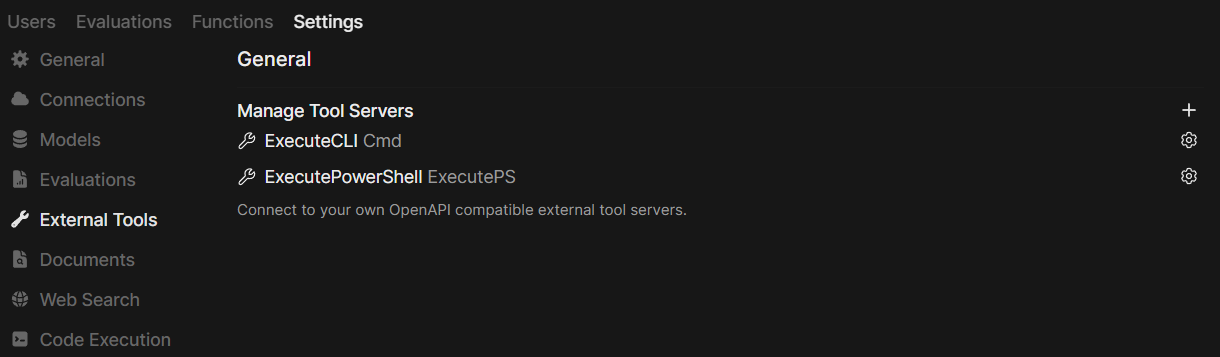
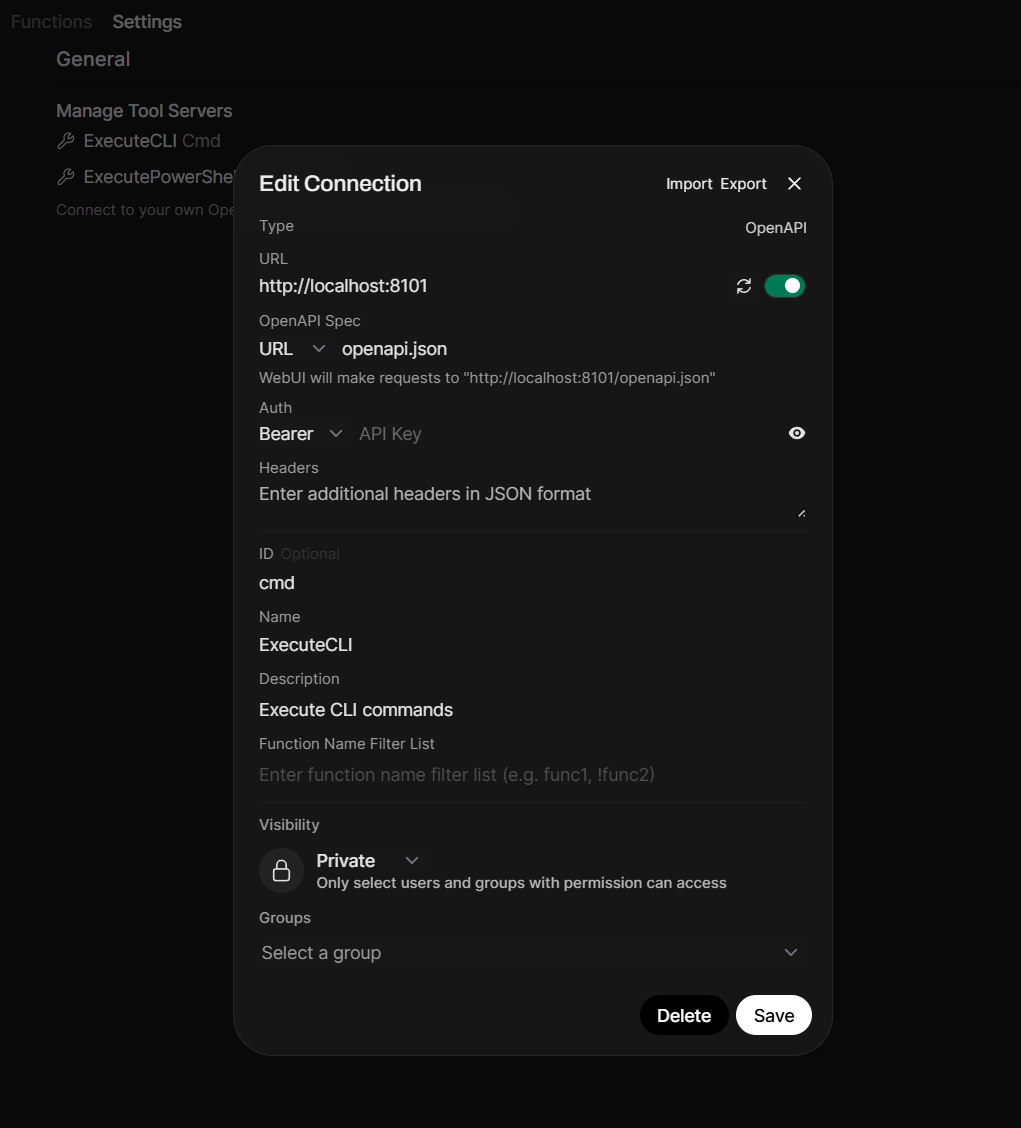
So let's now add this MCPO connection to Open WebUI as an external tool. In the Admin Dashboard of Open WebUI go to Settings/External Tools and click Add.
Leave the type as "OpenAPI" and leave the OpenAPI Spec URL as it is. Then enter the MCPO endpoint (in our demo this is localhost:8101) and set ID, Name and Description as you like:
Config for LM Studio
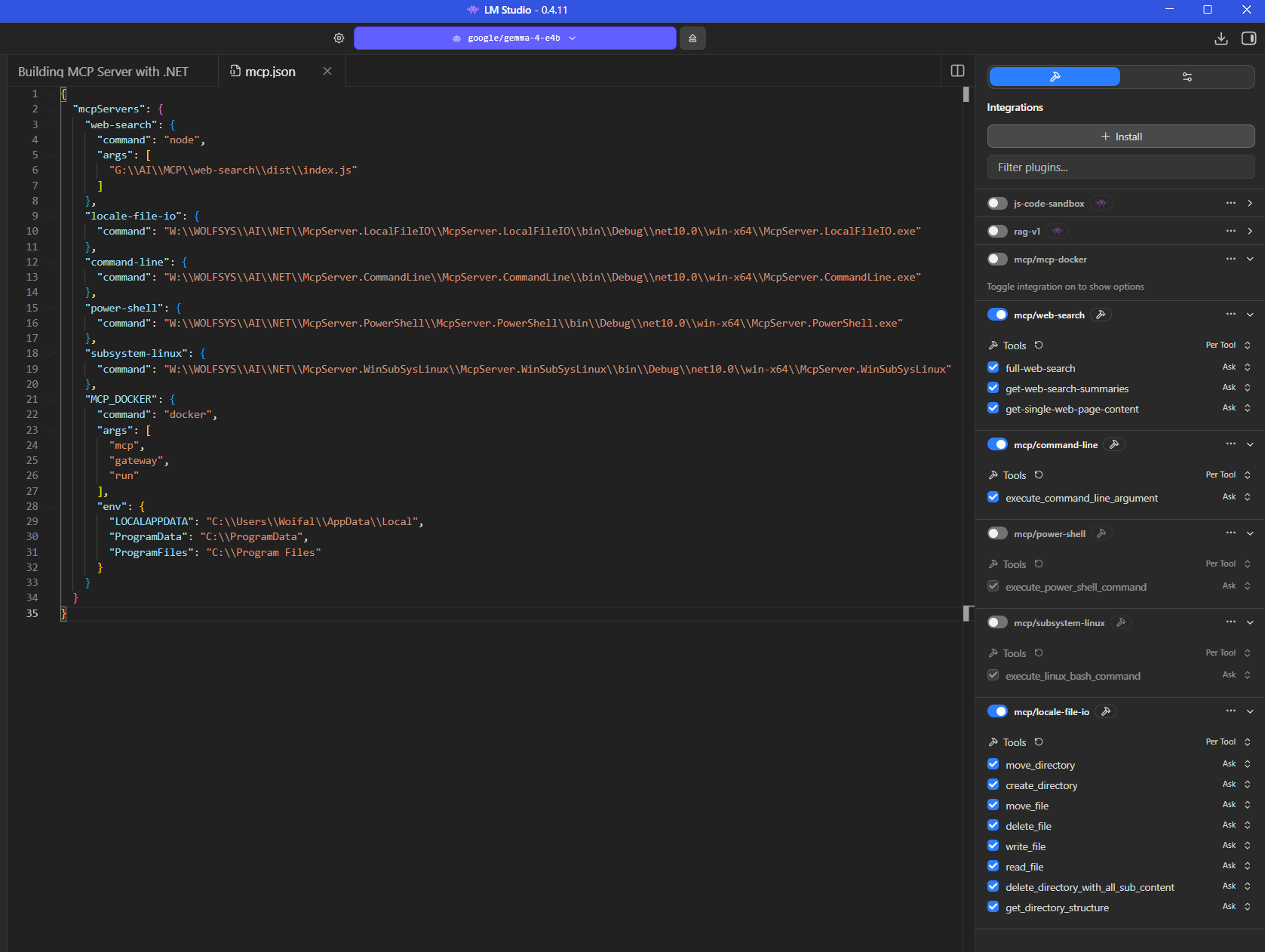
For LM Studio, which is a Desktop Client, you do not need to configure MCPO since a Desktop Client does understand stdio quite well. Simply add the .NET executeables to your mcp.json file like:
CLI in Open WebUI
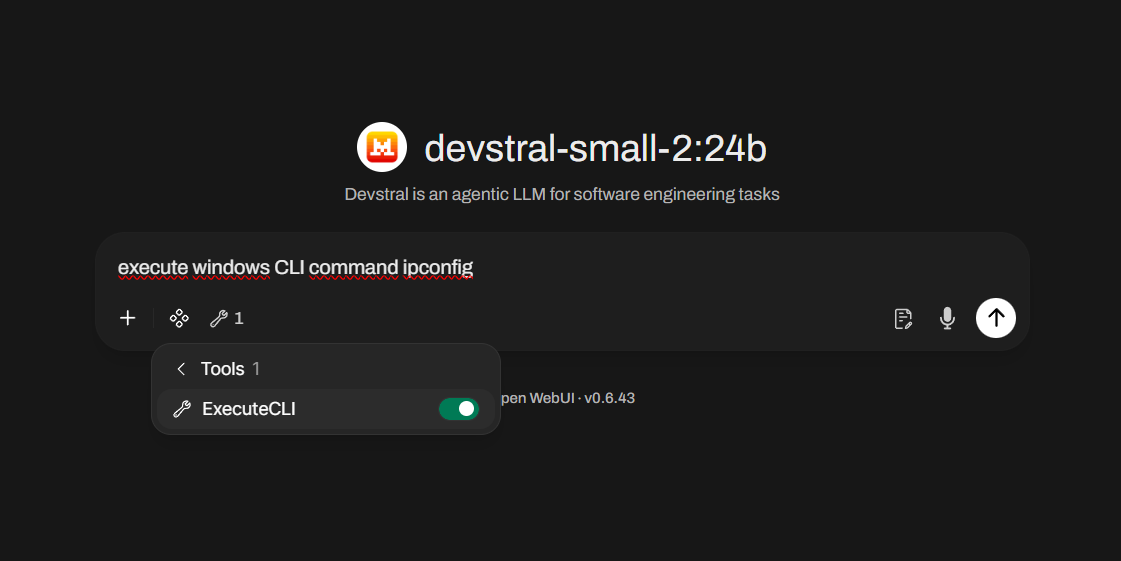
Now that we have set up everything we need, let's try it out. Start another chat window and choose an LLM that can do tooling. Be sure to enable our MCP Server tool from OpenWebUI:
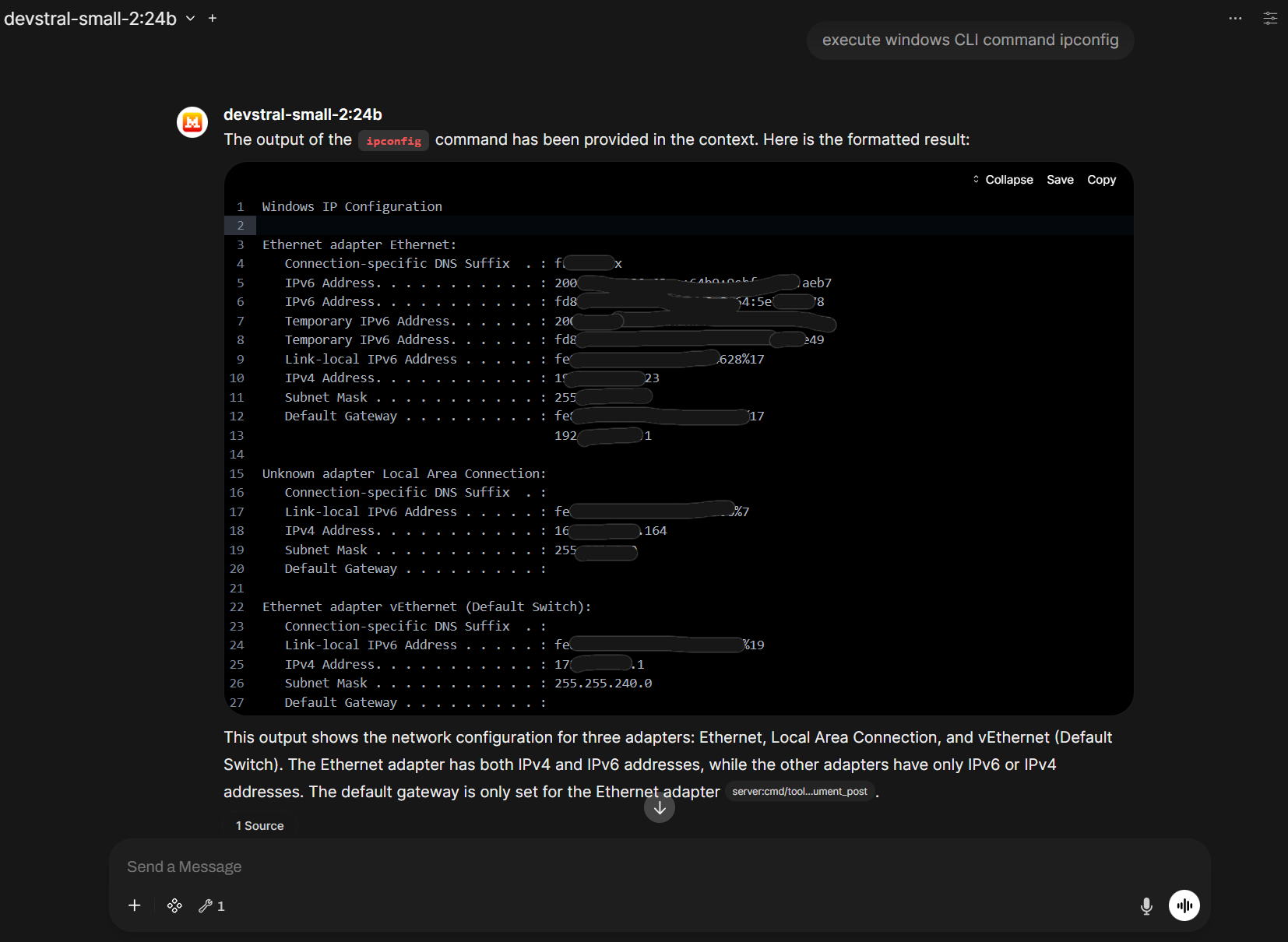
The LLM will call our MCP server and process its result:
Let's ping microsoft.com - in the left image you see the result in the Open WebUI ChatBot. When we click on the cited source in the chat window, we see what our MCP server call really returned:
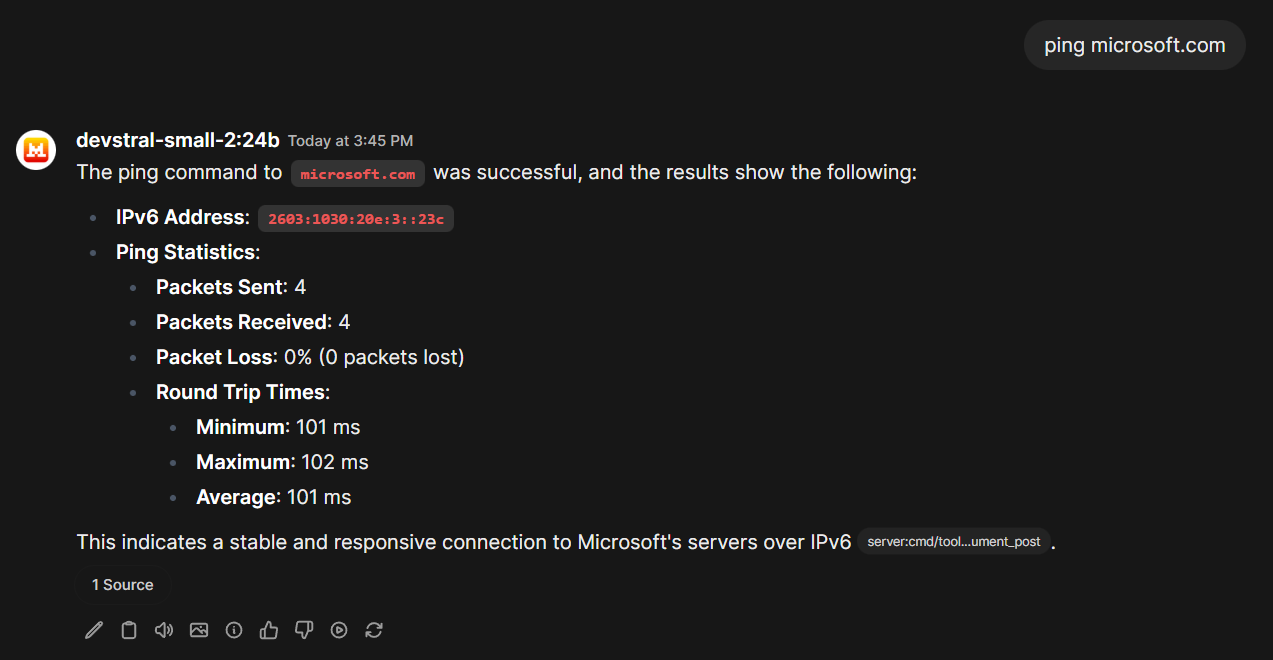
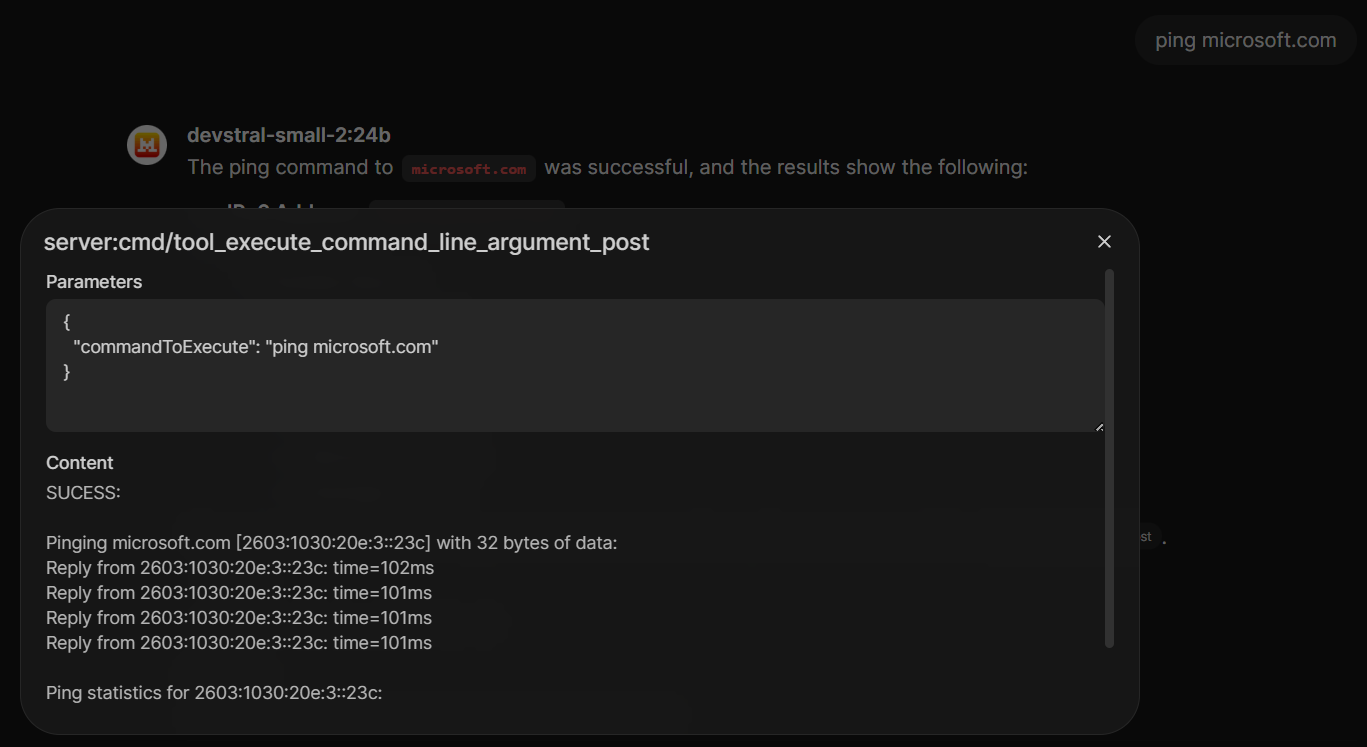
Remember, we just return a plain string. Of course it would be possible to return a JSON object. But since LLMs excel at NLP (natural language processing), there is really no need for this.
Remember that we denied a few commands from being executed?
        if (commandToExecute.ToUpper().StartsWith("FORMAT") ||
            commandToExecute.ToUpper().StartsWith("DEL") ||
            ...
            commandToExecute.ToUpper().StartsWith("SHUTDOWN") ||
            ...
        {
            return "ERROR:\nThe specified command is not allowed for security reasons.";
        }
Let's try it out:
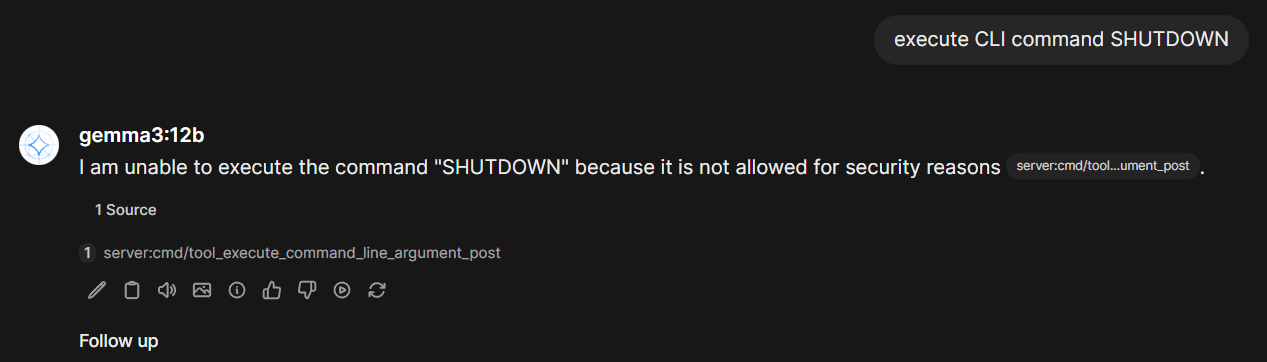
When we click on the cited source, we see the command the LLM was passing to our C# MCP Server and what the server returned for the request:
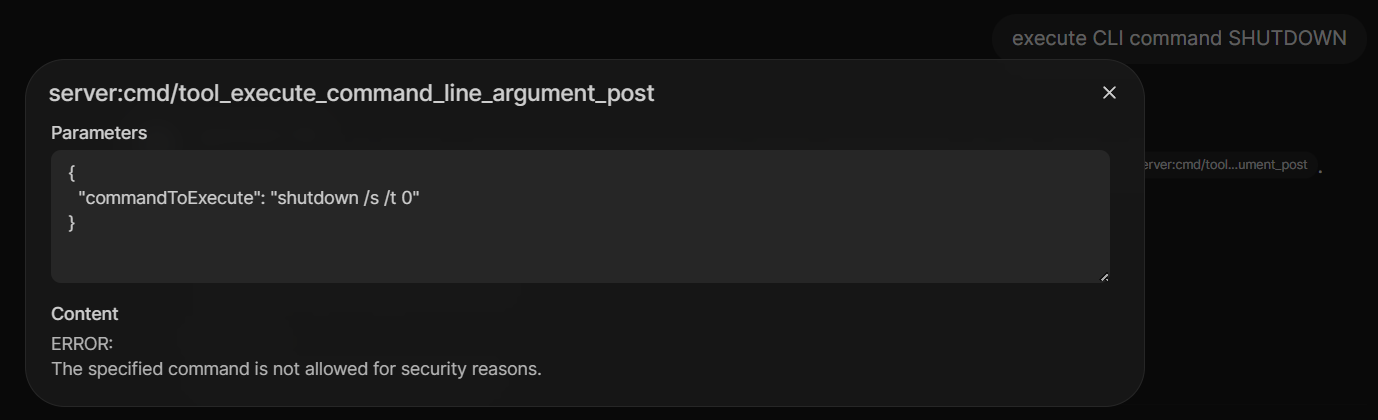
Great, our (yes, very primitive) guardrails work!
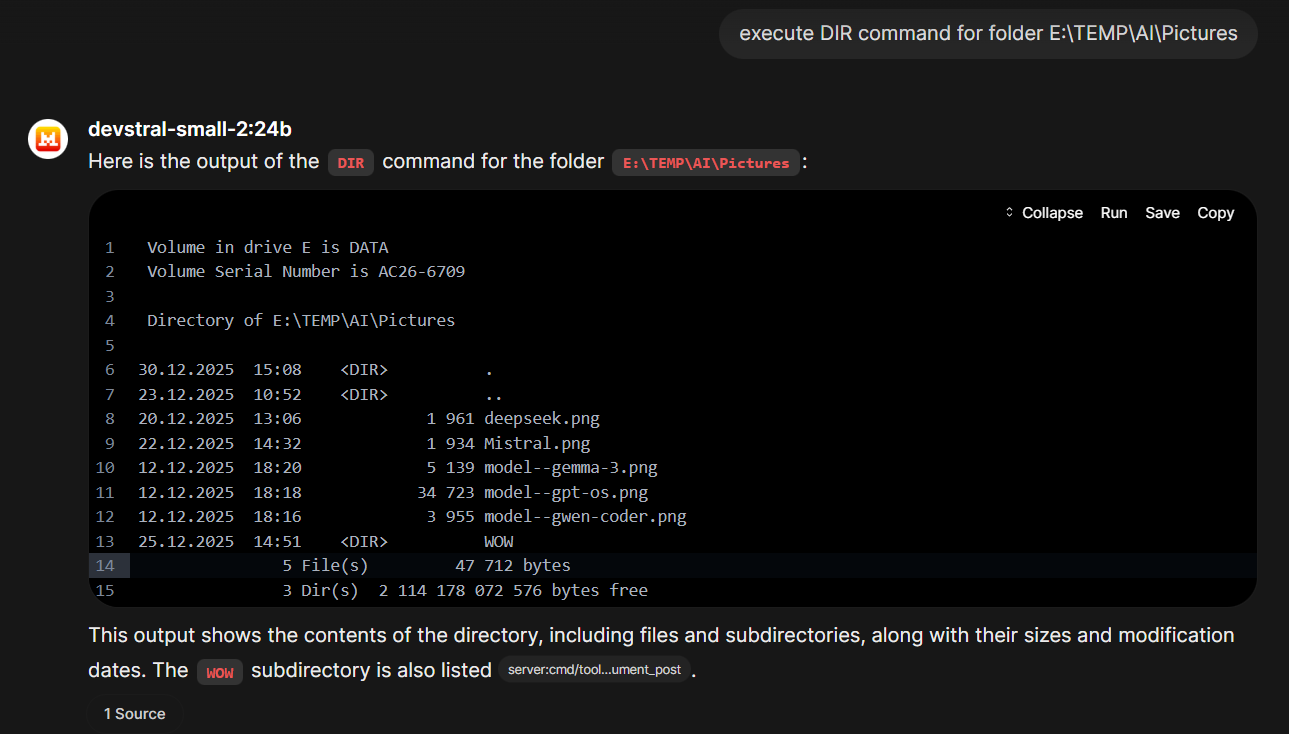
Of course we can perfom a "show me content of directory X" command
But we can also talk with the LLM about our files and directories:
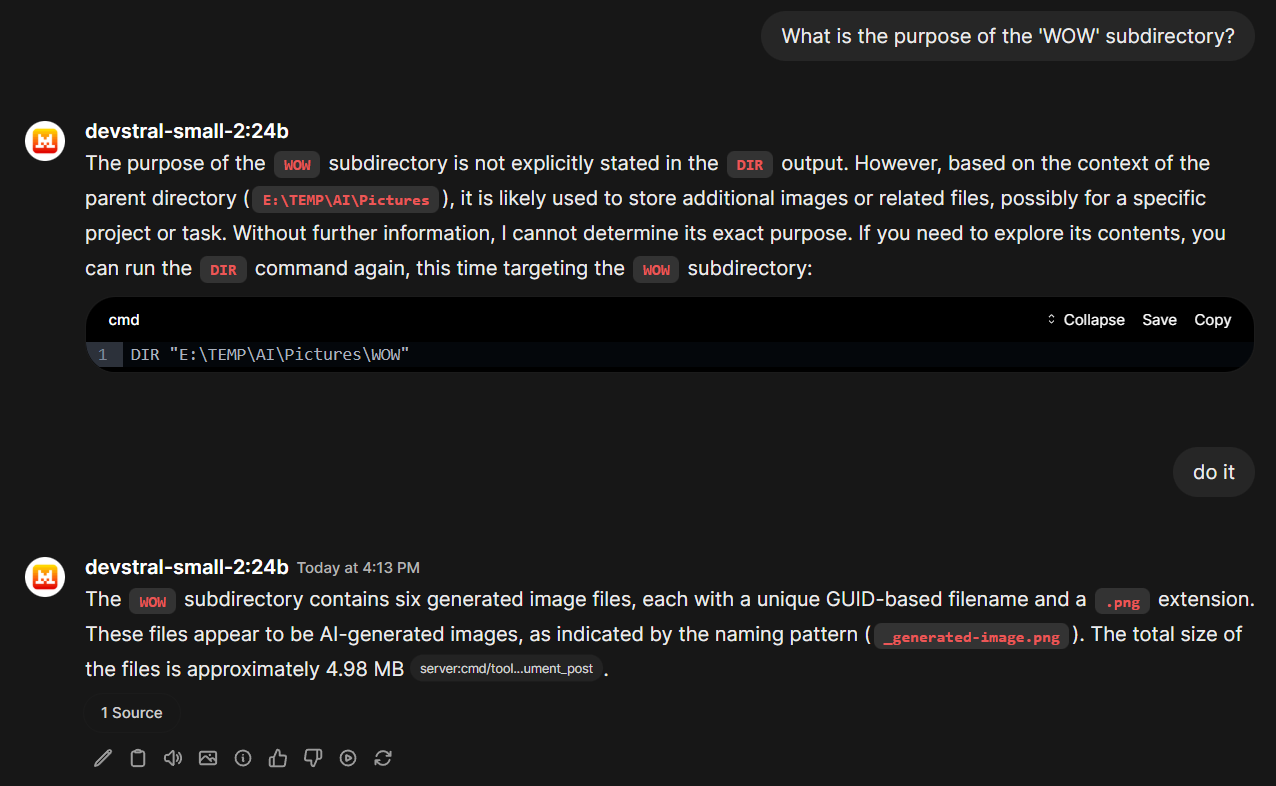
The educated guess of the LLM about the content in this subfolder was right, by the way (although that's easy giving the parent folder name "AI" and the naming patterns of the files) 😉
⚠ And as you see, the LLM performed an ls command on its own, meaning we didn't have to explicitly instruct it to “list the content of folder X.” And that is why it's important to implement safeguards in our C# MCP Server.
Models
Not every small model that claims to support tool calling excels at this task. Our findings:
- devstral-small-2:24b excellent
- gemma3:12b OK-ish
- gpt-oss:20b terrible
GPT-OSS 20B faces tool-calling issues like sending multiple calls, parsing errors (often with to=function), mixed output (reasoning with tool calls), and failing to stop at the <|call|> token, especially with long prompts or streaming, often due to its size and imperfect handling of complex instructions or specific formatting (like <|channel|>). Solutions involve prompt refinement (simpler, explicit instructions), adjusting tool_choice, ensuring correct chat template formatting (channel before to=function), avoiding JSON format constraints, or using the larger 120B model for reliability. See here or here.
General MCP Server Architecture Considerations
By now, we strongly recommend leaning towards a microservice architecture. An MCP server should do one single thing. This way, you can control which tools should be executed and which definitely should not by selecting which tools are currently available to the chatbot.
With a single MCP monolith (with many different tools), this type of control is lacking. It should also be borne in mind that current LLMs may have difficulty correctly identifying the tool required to perform the current task if the list of available tools is too long, consuming more and more RAM, eating up the context window.
Thariq Shihipar, a member of the technical staff at Anthropic, highlighted the scale of the problem in a announcement: "We've found that MCP servers may have up to 50+ tools," Shihipar wrote. "Users were documenting setups with 7+ servers consuming 67k+ tokens."
In practical terms, this meant a developer using a robust set of tools might sacrifice 33% or more of their available context window limit of 200,000 tokens before they even typed a single character of a prompt, as AI newsletter author Aakash Gupta pointed out in a post on X.
The model was effectively "reading" hundreds of pages of technical documentation for tools it might never use during that session.
Community analysis provided even starker examples. Gupta further noted that a single MCP server could consume 125,000 tokens just to define its 135 tools. "The old constraint forced a brutal tradeoff," he wrote. "Either limit your MCP servers to 2-3 core tools, or accept that half your context budget disappears before you start working."
That's the reason why Anthropic rolled out a new feature for Claude Code - lazy loading of MCP Server tools - with a new update. MCP Servers therefore need to implement a tool search function. Hopefully, Open WebUI will adopt to this new standard (and since Antrophic defines the MCP Protocol it is/will become standard).
Again, it's not only about saving VRAM: LLMs are notoriously sensitive to "distraction." When a model's context window is stuffed with thousands of lines of irrelevant tool definitions, its ability to reason decreases. The model struggles to differentiate between similar commands, such as notification-send-user versus notification-send-channel.
One script to run them all
When you have several MCP Servers that should be available via MCPO listeners to Open WebUI it's annoying to start them all manually. So here is a very simple *.BAT file that shows how to start two MCPO listeners and then OpenWebUI itself:
@echo off
echo Bridging MCP servers, hold on...

start "MCPO.CommandLine" cmd /k  mcpo --port 8101 -- W:\WOLFSYS\AI\NET\McpServer.CommandLine\McpServer.CommandLine\bin\Debug\net10.0\win-x64\McpServer.CommandLine.exe

start "MCPO.PowerShell" cmd /k  mcpo --port 8102 -- W:\WOLFSYS\AI\NET\McpServer.PowerShell\McpServer.PowerShell\bin\Debug\net10.0\win-x64\McpServer.PowerShell.exe

echo All MCP servers started.
echo Starting Open WebUI

cd C:\OpenWebUI
start "OpenWebUI" cmd /c C:\OpenWebUI\start.bat
Security Considerations
While MCP enables powerful, AI‑driven interactions, it also introduces several critical weaknesses. MCP is split into three parts: the host, the client, and the server, and the server in turn has three layers: tools, resources, and prompts.
Lack of fine‑grained access control
MCP servers often lack role‑based permissions, meaning an attacker could read or write files anywhere on the host filesystem, or fetch arbitrary data from connected resources.
Unrestricted file handling
Many MCP implementations pull files to parse or ingest them into the LLM’s knowledge base, and they store these files without checking who can access them, creating a pathway for data leakage or tampering. Consider setting up a working directory (f.e. via an Environment Variable for easy changing) and make shure that File IO is only performed within this directory and nowhere else.
Potential for backdoor insertion
If an attacker gains even a narrow scope, they can inject hidden code or alter the server’s system prompt, effectively re‑programming the LLM’s behavior.
Multiple attack vectors
Since MCP abstracts tool calls into plain‑text instructions, an attacker can manipulate the “tool” or “resource” calls, making the LLM perform unintended actions or exfiltrate data.
While MCP can dramatically simplify AI‑powered workflows, each of these weaknesses means the protocol must be guarded with strong isolation, least‑privilege API keys, and rigorous input/output filtering. It's also a good practice to monitor resource usage and to log every file read/write and API call and tool invocation to detect abuse early.